Manage servers together
Add other users to your server, assign roles, and track what’s changed.
Posted on June 3, 2026 Modrinth Team
Hey everyone,
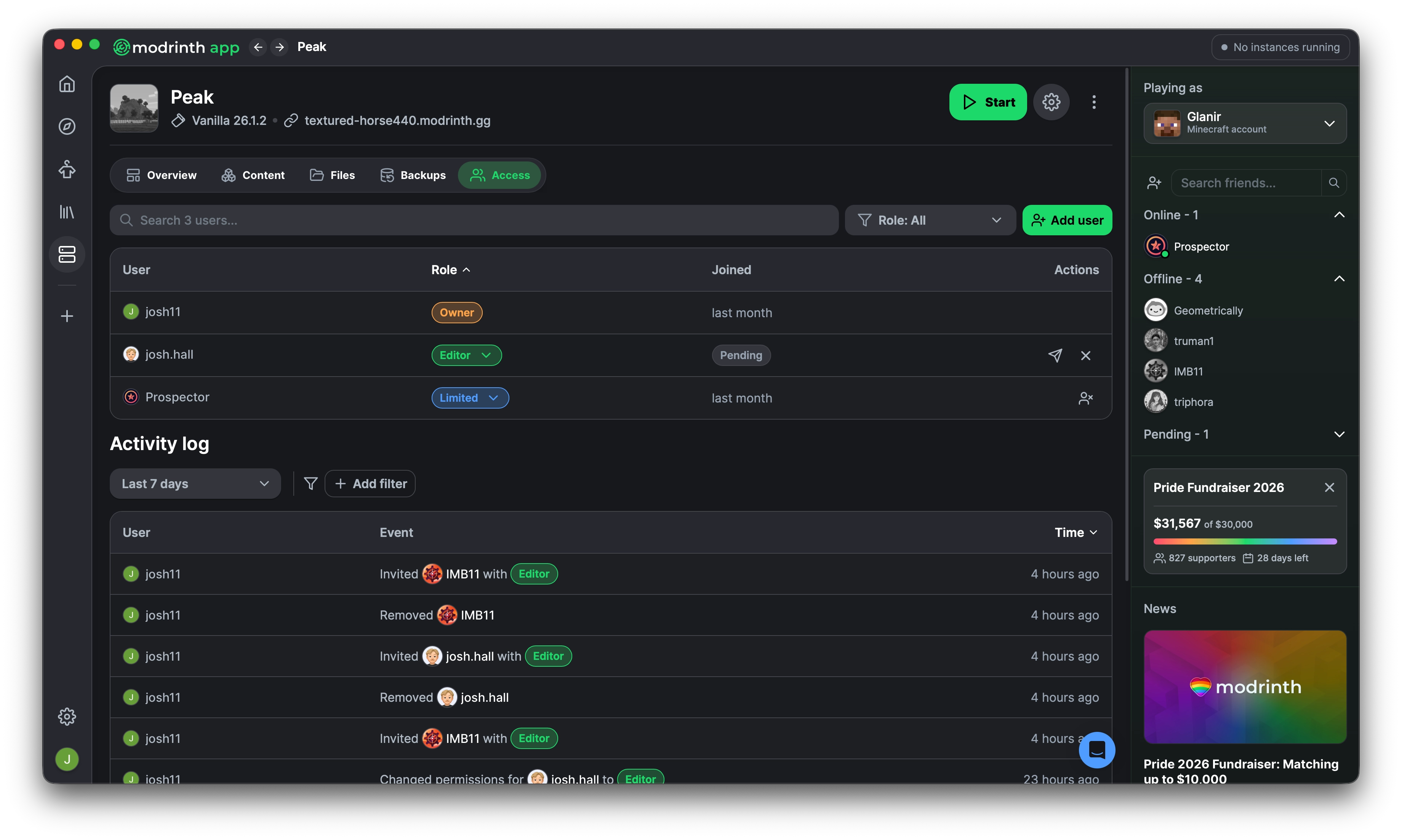
With this release, you can now give other users access to your server! This has been one of the most requested features for Modrinth Hosting and we’re excited to finally get it out.
TL;DR
- Add users to your server
- Set permission roles
- View activity log
Invite your friends
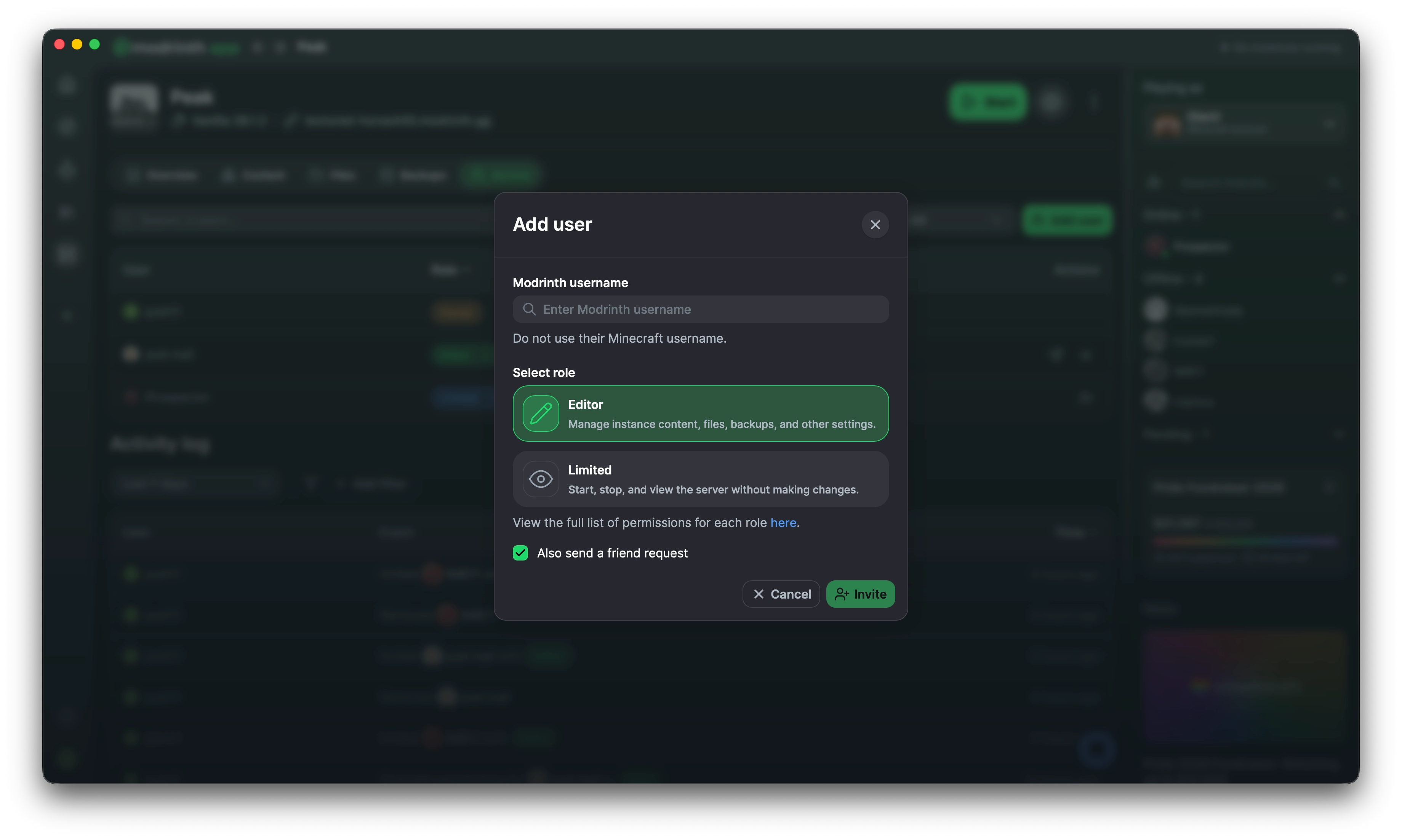
You can now give other users access to your server so they can help manage content, start the server, and more. To invite someone, just enter their Modrinth username and they’ll receive an invite by email or as a notification in the app if they’re signed in.
Alongside this release, we’ve also improved state syncing between the website panel, app, and other users, so everything should stay up to date in real time.
Permission roles
When adding someone to your server, you can choose what level of access they have. There are three roles, with each role inheriting the permissions of the previous one:
- Owner: Full access to the server including billing (you)
- Editor: Manage content, files, backups, settings, and more
- Limited: Start, stop, and view the server without making changes
You can find a full permission breakdown below:
| Permission | Owner | Editor | Limited |
|---|---|---|---|
| Start / stop server | ✅ | ✅ | ✅ |
| Execute commands | ✅ | ✅ | ❌ |
| Edit settings | ✅ | ✅ | ❌ |
| Edit installation | ✅ | ✅ | ❌ |
| Manage content | ✅ | ✅ | ❌ |
| Manage files | ✅ | ✅ | ❌ |
| Create & restore backups | ✅ | ✅ | ❌ |
| Invite users | ✅ | ❌ | ❌ |
| Reset server | ✅ | ❌ | ❌ |
| Manage billing | ✅ | ❌ | ❌ |
See what changed
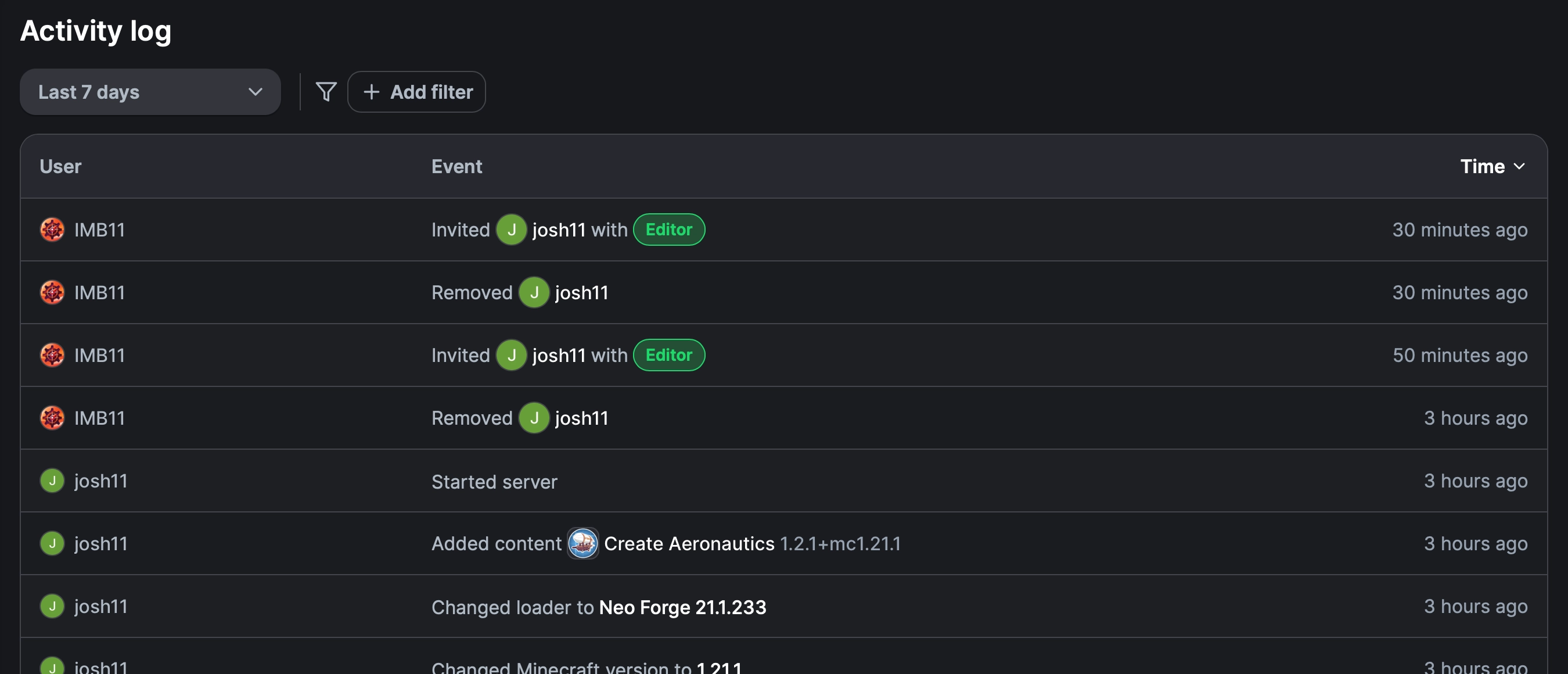
Along with adding users, we’ve introduced an activity log. This is a chronological history of actions related to your server so you can see what changed, who changed it, and when it happened. Some actions are grouped together, like updating multiple projects at once, to keep things easier to read.
You can select a time timeframe and filter by user or action type if you’re looking for something specific.
—
Thank you for your continued support! 💚